
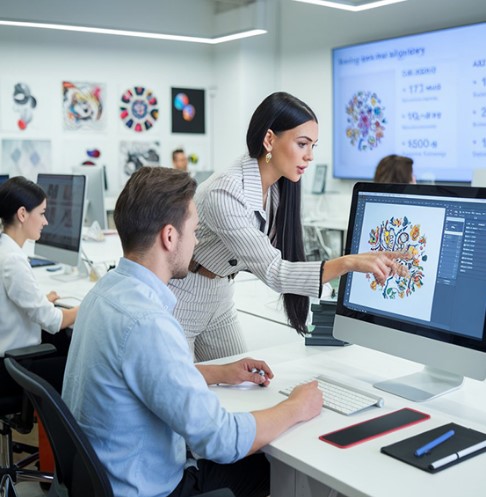
If you design logos in Adobe Illustrator, you already have a great start. Vector art is clean. It has sharp lines. It can scale up or down with no blur. That makes it perfect for embroidery work.
But your AI file cannot go straight into an embroidery machine. First, you must Convert AI File to Embroidery Format so the design becomes stitch data. A machine reads stitches, not shapes or paths like Illustrator does.
In this guide, I will walk you through the full process. I have worked with many AI files over the years. I have tested them on shirts, caps, bags, and jackets. I will share what works and what does not. Let us keep it simple and clear.
Why Illustrator Files Are Great for Embroidery
Illustrator uses vector paths. These paths are made of clean lines and shapes.
That is good for embroidery because:
-
Lines are sharp
-
Shapes are clear
-
Colors are easy to separate
-
Files are high quality
When I get a clean AI file from a client, my job becomes easier. I do not need to trace a blurry image. I can focus on stitch planning.
Why You Still Need Digitizing
Many people think vector art is ready for stitch. It is not.
Machines Read Stitches, Not Shapes
An embroidery machine needs:
-
Stitch type
-
Stitch angle
-
Stitch order
-
Density level
-
Color sequence
An AI file does not have this data. It only has shapes and colors.
Digitizing is the step where we turn art into stitch paths.
Step 1: Prepare Your Illustrator File
Before you digitize, clean the artwork.
Remove Extra Points
Too many anchor points can slow the process. Simplify paths when you can.
Expand Strokes
If your design has strokes, expand them into shapes. This avoids errors later.
Check Text
Convert text into outlines. This keeps the font shape safe.
Keep Colors Simple
Limit the number of colors. Too many color changes mean more stops in the machine.
From my own work, simple art always stitches better than busy art.
Step 2: Choose the Right Digitizing Software
Now you need embroidery software.
Look for software that:
-
Imports AI or EPS files
-
Allows manual stitch control
-
Exports in formats like DST, PES, VP3
Manual control is very important. Auto tools can help, but they are not perfect.
At Embroidery Digitizing Services in USA – Digitizing Buddy, we always review auto results by hand. Small edits make a big difference.
Step 3: Assign the Right Stitch Types
Each part of your design needs the right stitch.
Satin Stitch
Best for:
-
Text
-
Borders
-
Small shapes
It looks smooth and shiny.
Fill Stitch
Best for:
-
Large shapes
-
Solid areas
It covers space evenly.
Running Stitch
Best for:
-
Thin lines
-
Small detail
-
Underlay
Choosing the wrong stitch can ruin the look. For example, wide satin stitch may snag. Small fill areas may look rough.
Step 4: Set Stitch Direction
Stitch angle affects shine and texture.
If all stitches run in one direction, the design may look flat.
Change angles between shapes. This gives depth and contrast.
In my test runs, angle changes made logos look more bold and clear.
Step 5: Adjust Stitch Density
Density controls how tight stitches sit together.
Too tight:
-
Fabric puckers
-
Thread breaks
Too loose:
-
Gaps show
-
Design looks thin
Each fabric needs a different setting.
Cotton
Medium density works well.
Polo Knit
Use less density. Knit fabric stretches.
Caps
Use firm density and strong underlay.
Always test on scrap fabric first.
Step 6: Add Underlay Stitch
Underlay is the base stitch. It supports the top stitches.
It helps:
-
Hold fabric flat
-
Stop shifting
-
Improve coverage
Never skip this step. Even simple logos need underlay.
This is a key step we focus on at Embroidery Digitizing Services in USA – Digitizing Buddy. It keeps logos neat and long lasting.
Step 7: Plan the Stitch Order
Order matters.
Start with large fills. Then stitch details. Add borders last.
If you stitch small text first, it may get covered by later stitches.
Smart planning saves time and reduces thread trims.
Step 8: Export in the Right Format
Now save your file in the correct machine format.
Common formats:
-
DST
-
PES
-
VP3
-
EXP
Check your machine manual.
Never guess the format. A wrong file type will not load.
Step 9: Test the Design
Testing is not optional.
Use the Same Fabric
Test on the same fabric type as the final item.
Check for Problems
Look for:
-
Thread breaks
-
Gaps
-
Loose edges
-
Puckering
Fix the file if needed. Run another test.
I always tell clients that one test can save many shirts from waste.
Common Problems and Easy Fixes
Let us talk about issues I see often.
Small Text Not Clear
Fix: Increase size or switch to satin stitch.
Fabric Pulling In
Fix: Lower density. Add more underlay.
Outline Not Matching Fill
Fix: Adjust pull compensation.
Small edits can fix big problems.
Tips from Real Experience
Over time, I learned some simple truths.
Keep It Bold
Thin lines do not stitch well. Make lines thicker.
Avoid Tiny Detail
Embroidery cannot show fine print like paper.
Use Clear Color Blocks
Solid color areas stitch best.
Save Master Files
Keep both AI file and digitized file safe.
These small habits build better results.
Why Trust Matters in Digitizing
Your logo shows your brand. If it looks bad in stitch, it hurts your image.
A clean stitch shows care and skill.
Clients trust brands that look neat and sharp.
That is why many business owners choose Embroidery Digitizing Services in USA – Digitizing Buddy. Skilled digitizers understand fabric, thread, and machine limits. They test designs before final use.
Trust grows when results stay strong wash after wash.
How Digitizing Builds Brand Value
Embroidery lasts long. It does not fade like print.
A well-made stitch logo:
-
Looks rich
-
Feels strong
-
Adds value to clothes
When your logo stitches well, people notice.
That small detail can help build brand power.
Final Thoughts
Turning Illustrator designs into stitch files is not hard. But it needs care.
Start with clean vector art.
Choose the right stitch types.
Set correct density.
Add strong underlay.
Test before full run.
Take your time with each step.
Embroidery is both art and skill. With practice and smart planning, your AI designs will turn into clean, bold stitch files.
And if you want expert help, working with a trusted team like Embroidery Digitizing Services in USA – Digitizing Buddy can save time and protect your brand image.
Your design deserves to look just as good in thread as it does on screen.


